¶ What is IdeaFormer-Slicer?
IdeaFormer-Slicer is an OrcaSlicer software based on SoftFever. OrcaSlicer was originally based on a branch version of Bambu Studio.
IdeaFormer-Slicer is a slicing software developed by IdeaFormer. It has added support for belt-type 45° 3D printers on the original basis and has custom functions specifically developed for IdeaFormer IR3 series 3D printer equipment.
¶ System Requirements
Windows 10 or higher
Mac OS X v10.15 or higher
Linux Ubuntu 20.02 or higher/Fedora 36 or higher (Linux version needs to be downloaded from github)
Intel® Core 2 or AMD Athlon® 64 processor; 2 GHz or faster processor
OpenGL 2.0-capable system
Recommend 8GB RAM, at least 4GB
2.0 GB or more of available hard-disk space
¶ Download & Installation
Download IdeaFormer-Slicer
Install according to the step-by-step guide
-
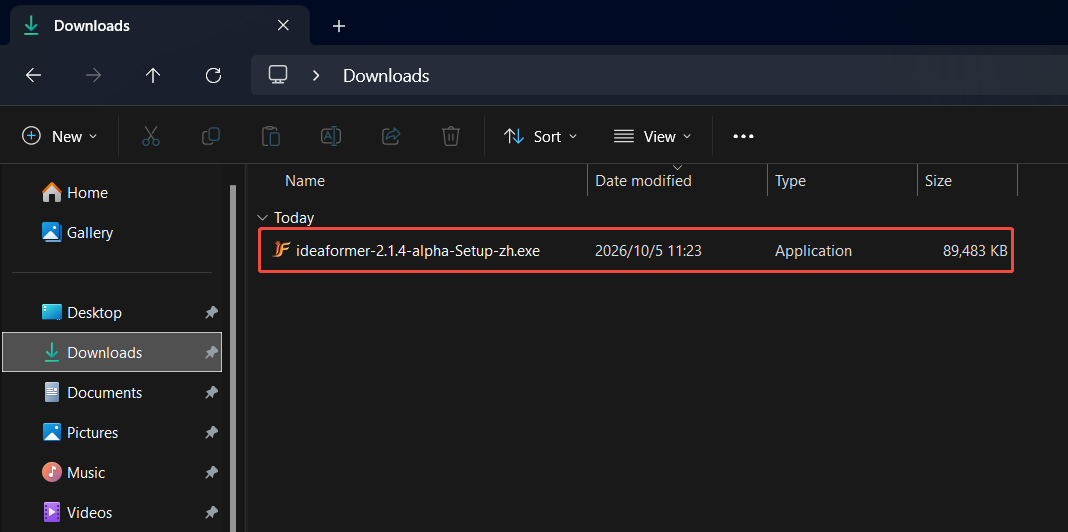
Find the downloaded installation package file and double-click to open it.
-
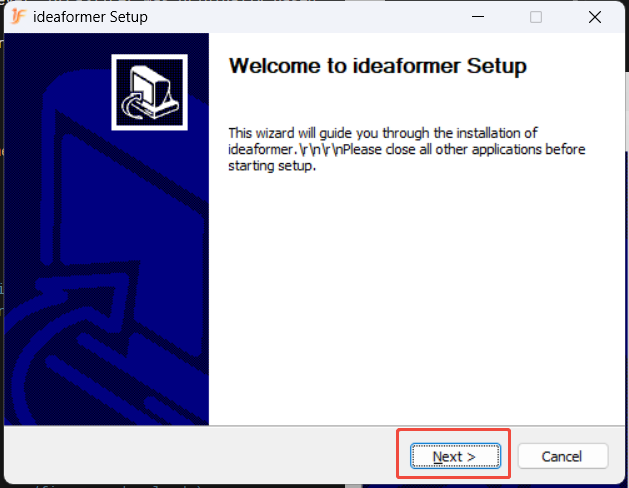
Click “Next”
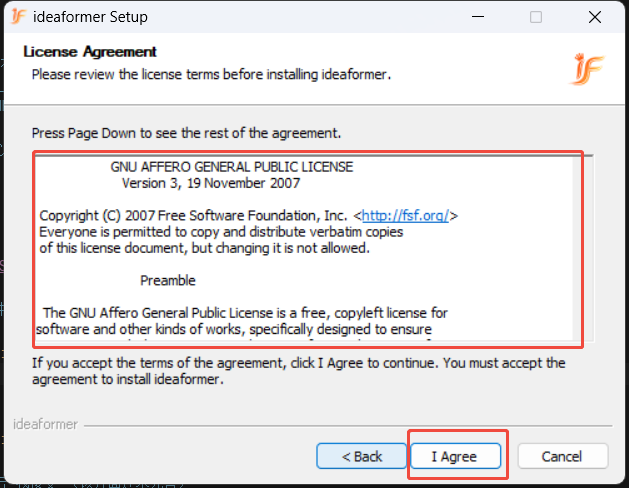
Read the license terms and click “I Accept” (this interface is still under development)
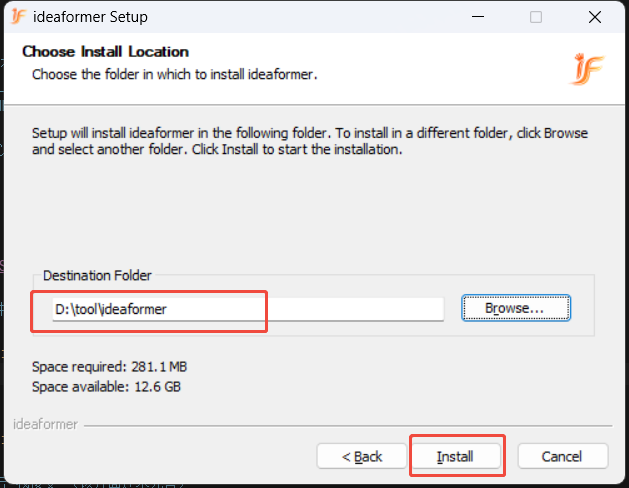
Click to view to modify the installation path. If necessary, click “Change” and then click “Install”.
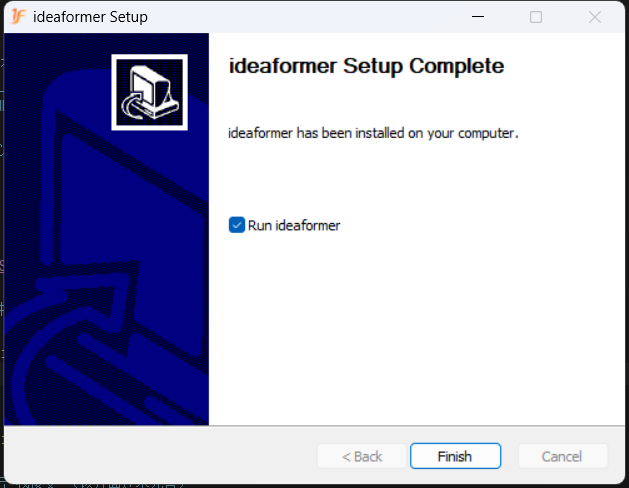
After installation is completed, simply click “Finish” to complete the installation.
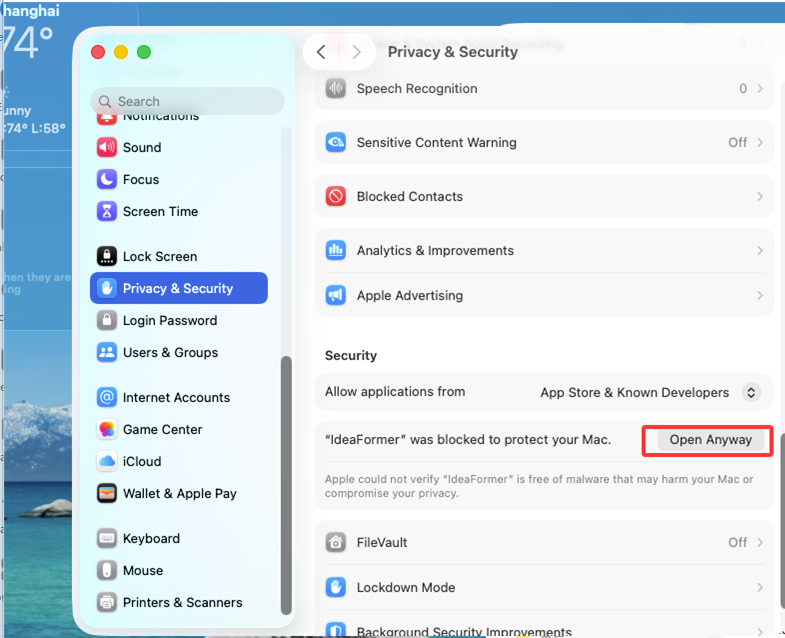
- Attention!!
After the installation is completed, your Mac system may encounter a situation where the ideaformer application is disabled. Please click Open Anyway in the system settings.
¶ Setup Wizard
¶ Select Login Region
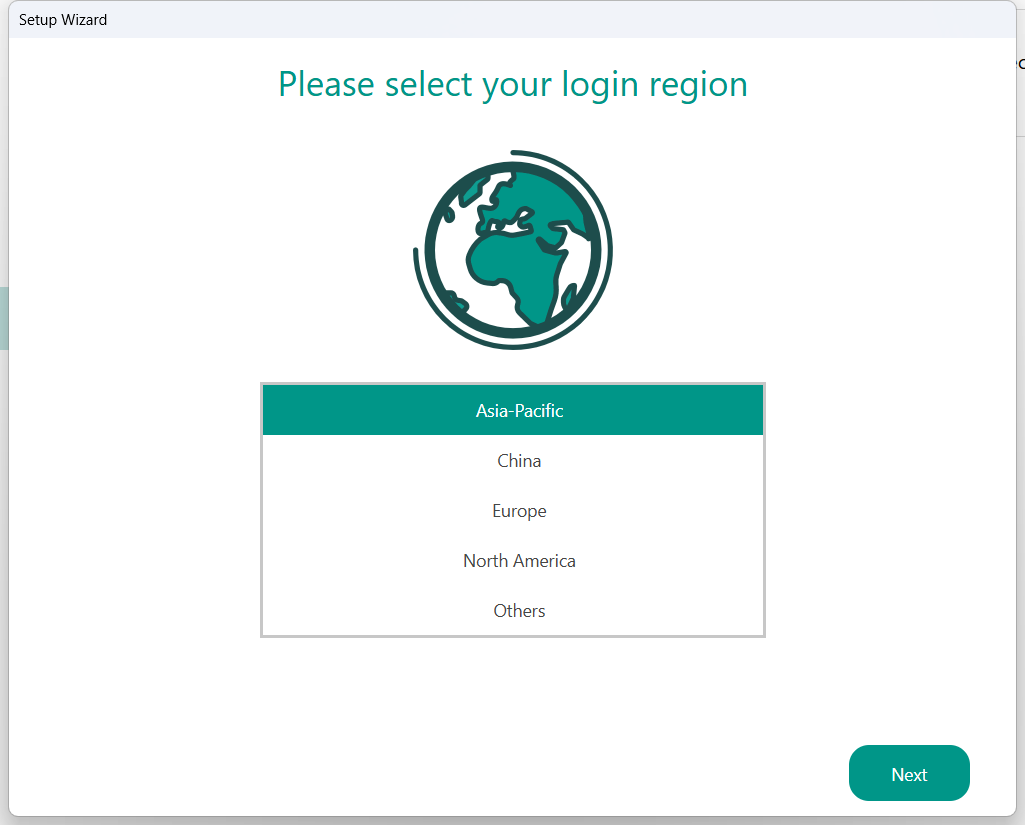
The first step is to select the region you are located in. A user account registered in North America for example, cannot log in if the region is set to China.
¶ Printer Selection
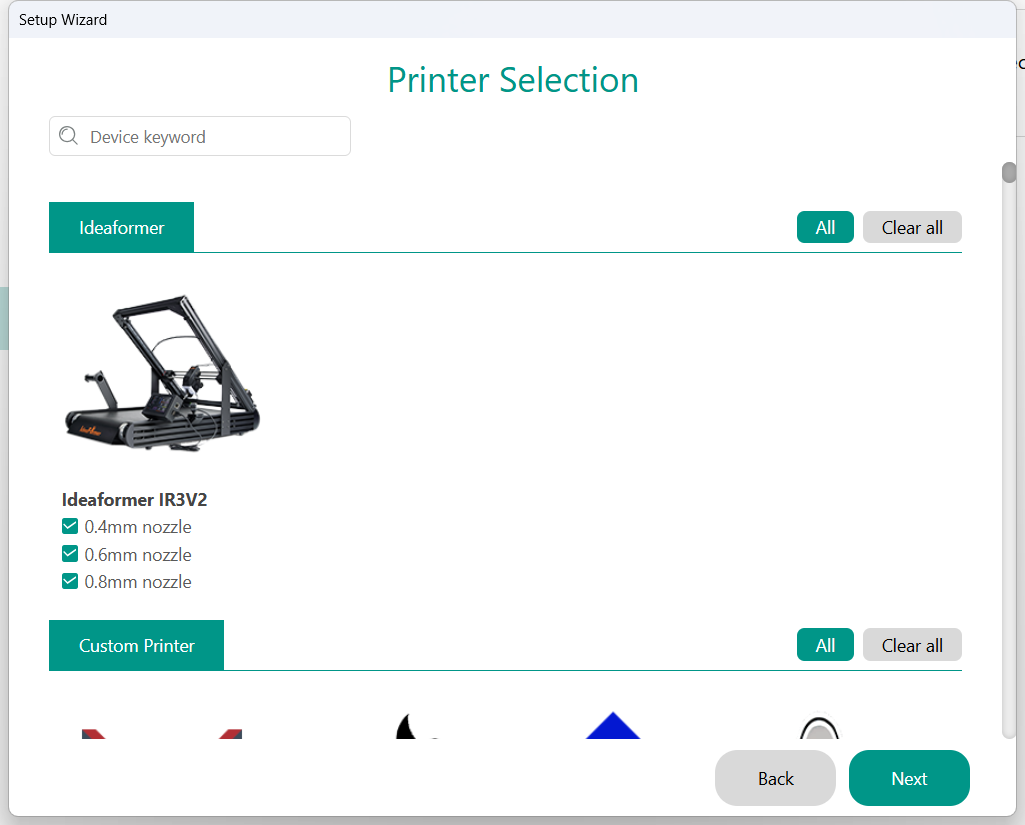
Choose the printers/nozzles that you would like displayed in the slicer operation menu. You may select any or all of the options available to you. These options can be altered at a later stage through the slicer menu should you wish to only choose one at this stage and decide to change nozzle size at a later stage.
¶ Filament Selection
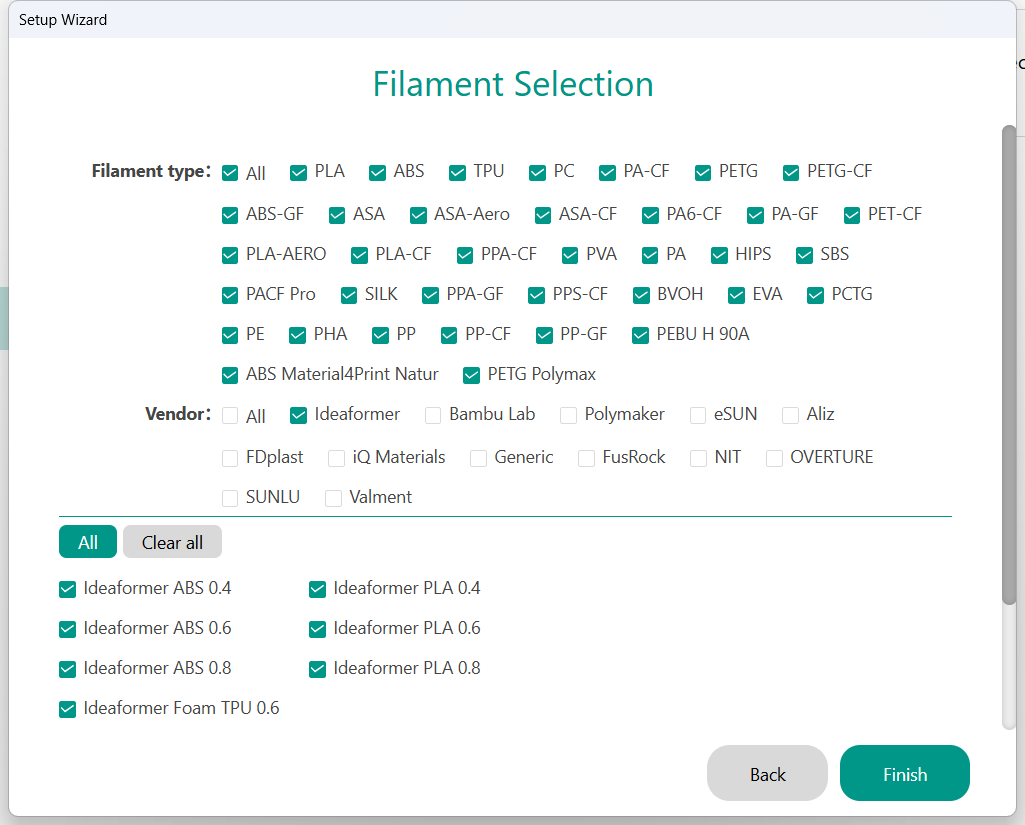
Select the filaments you would like to see listed in the filament preset list, you can choose as many as are available.
¶ First Print
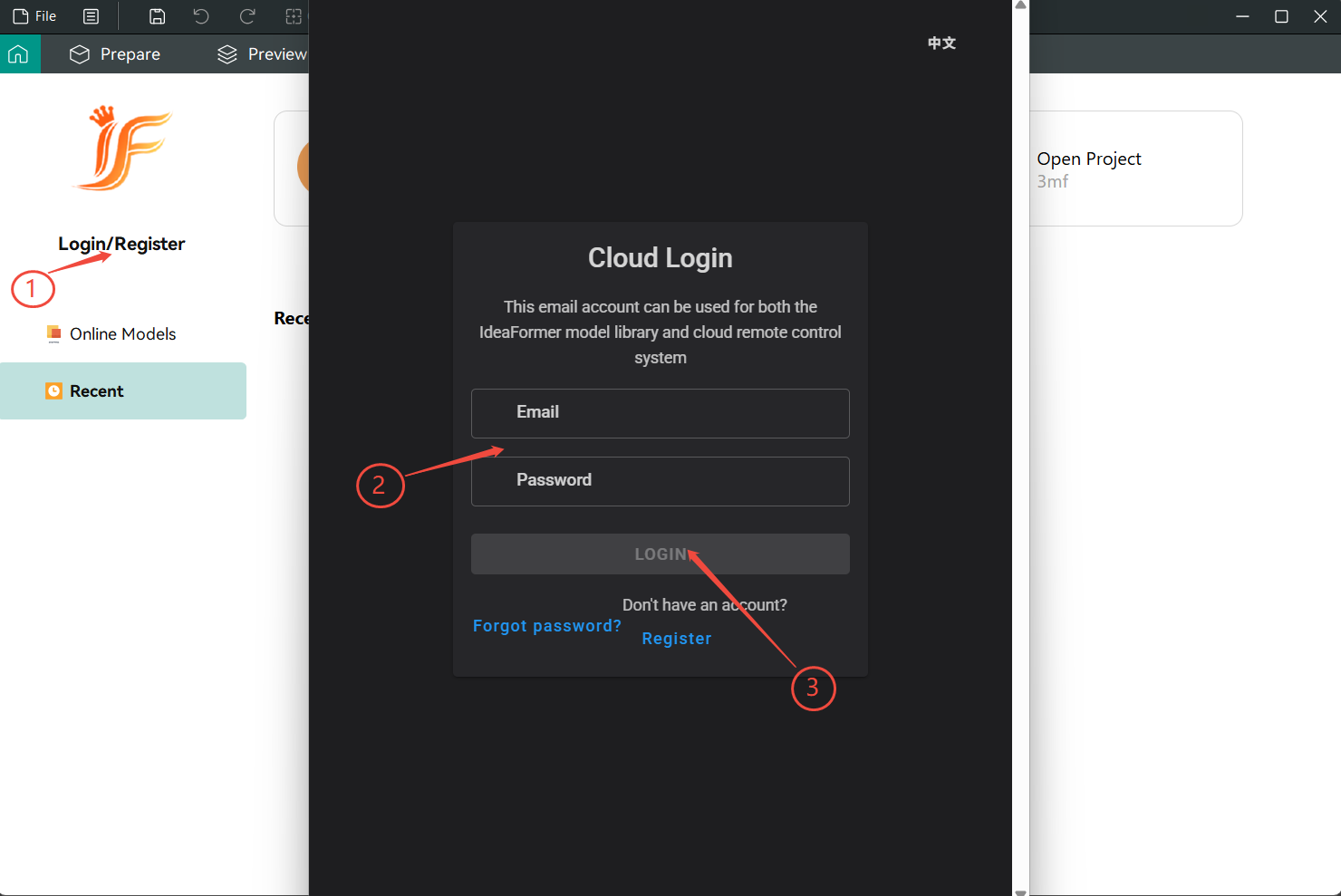
¶ Log in to your account (optional, but strongly recommended)
This is a necessary step for using a remote control (non-local network) to connect to a printer device.
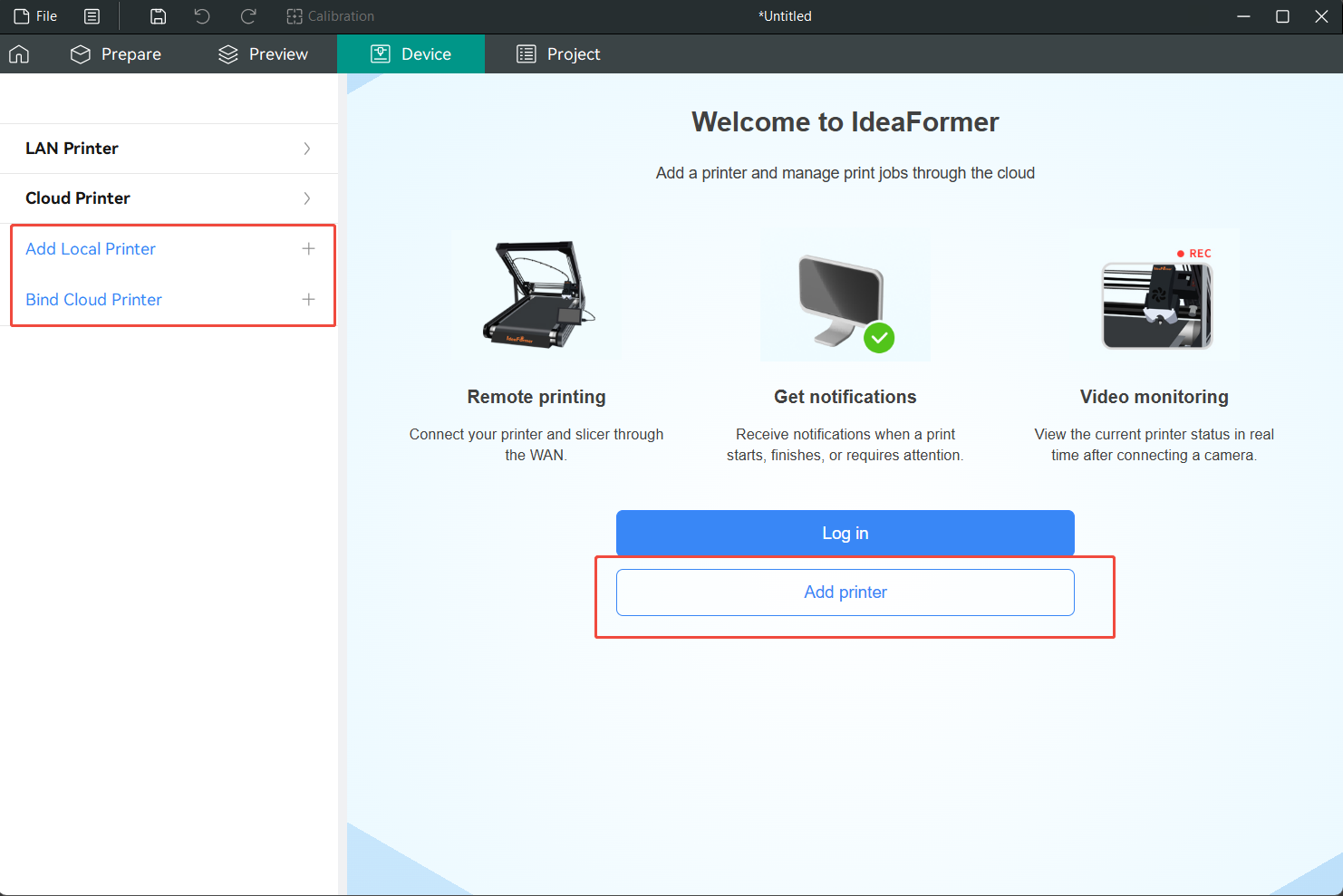
¶ Printer Binding
Bind via PIN code.
Bind the printer using IP address and access code (the printer needs to be used in local network mode, suitable for data isolation or environments without external network).
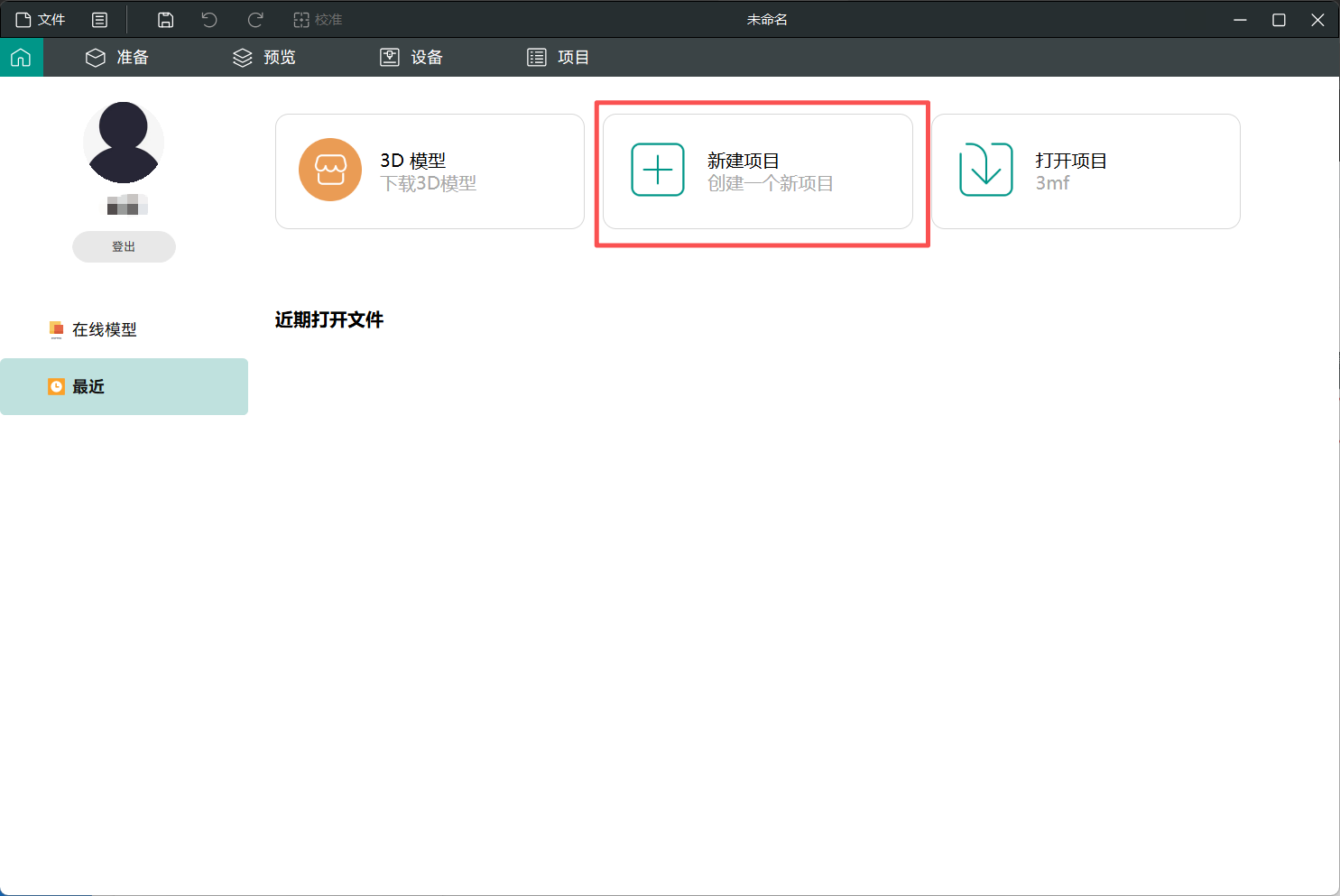
¶ Create a new project
Click on the home page and then select Create a new project
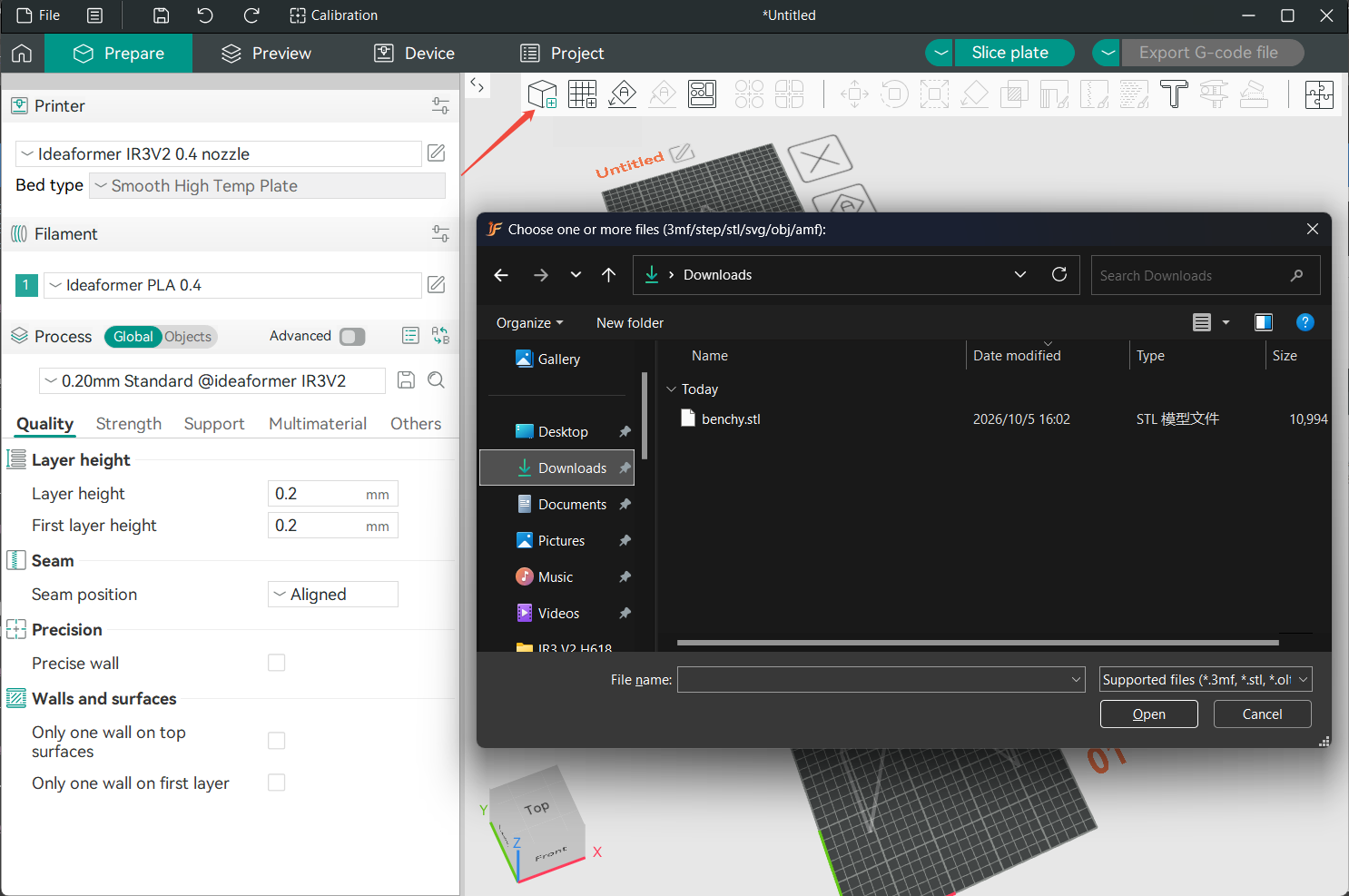
¶ Add a Model
On the top toolbar of the preview pane, click on the first icon add to import a model. You can also drag and drop model files from a folder into Studio. Supported files include .3mf .stl .stp .step .amf .obj.
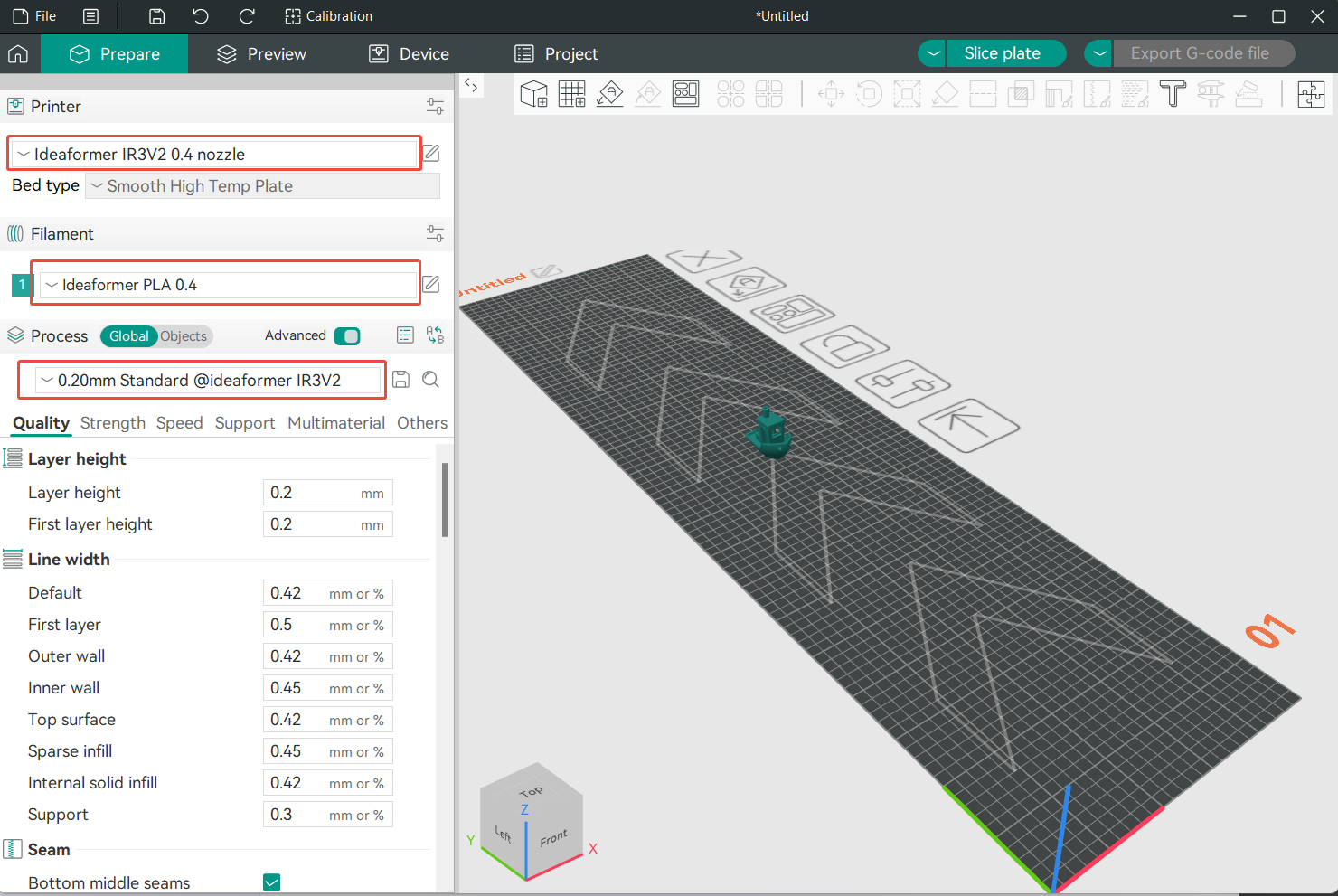
¶ Select Printer/Filament/Process presets
To start slicing the model, you need to choose the presets for the machine you are using, for the filament you will print with and also the settings you want to print the model in.
Select the printer you are using from the drop-down list under Printer. This will also include the nozzle size you will be printing with
Under the Filament section, select the type of filament you intend to use from the drop-down list
Choose the layer height you want your model to be printed in from the Process drop-down menu. Always remember that the smaller the layer height, the longer the print will take. For the majority of prints, a 0.20mm layer height is the norm.
¶ Slice plate
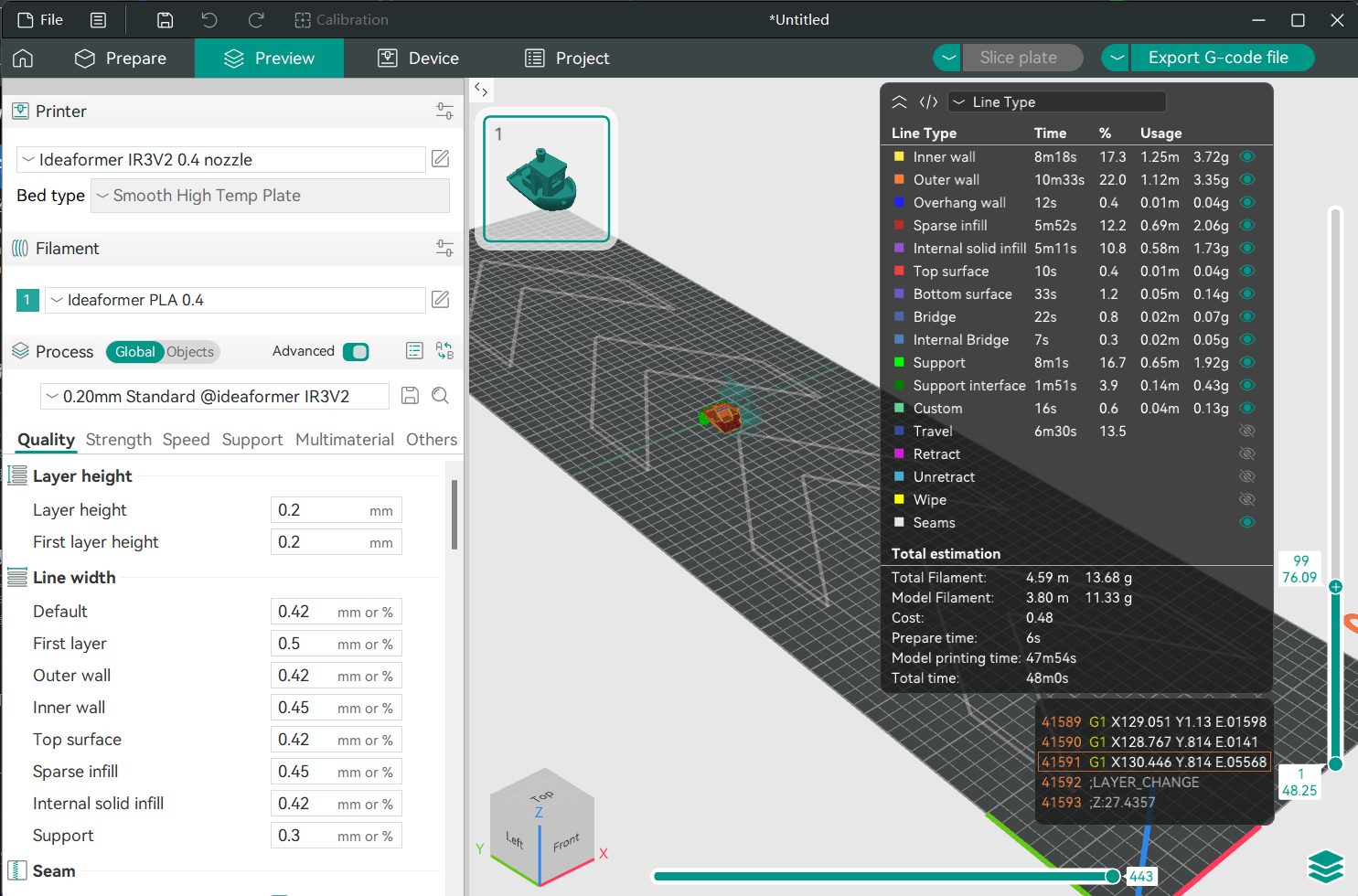
Once done, click on the Slice button located on the top hand right of Ideaformer.
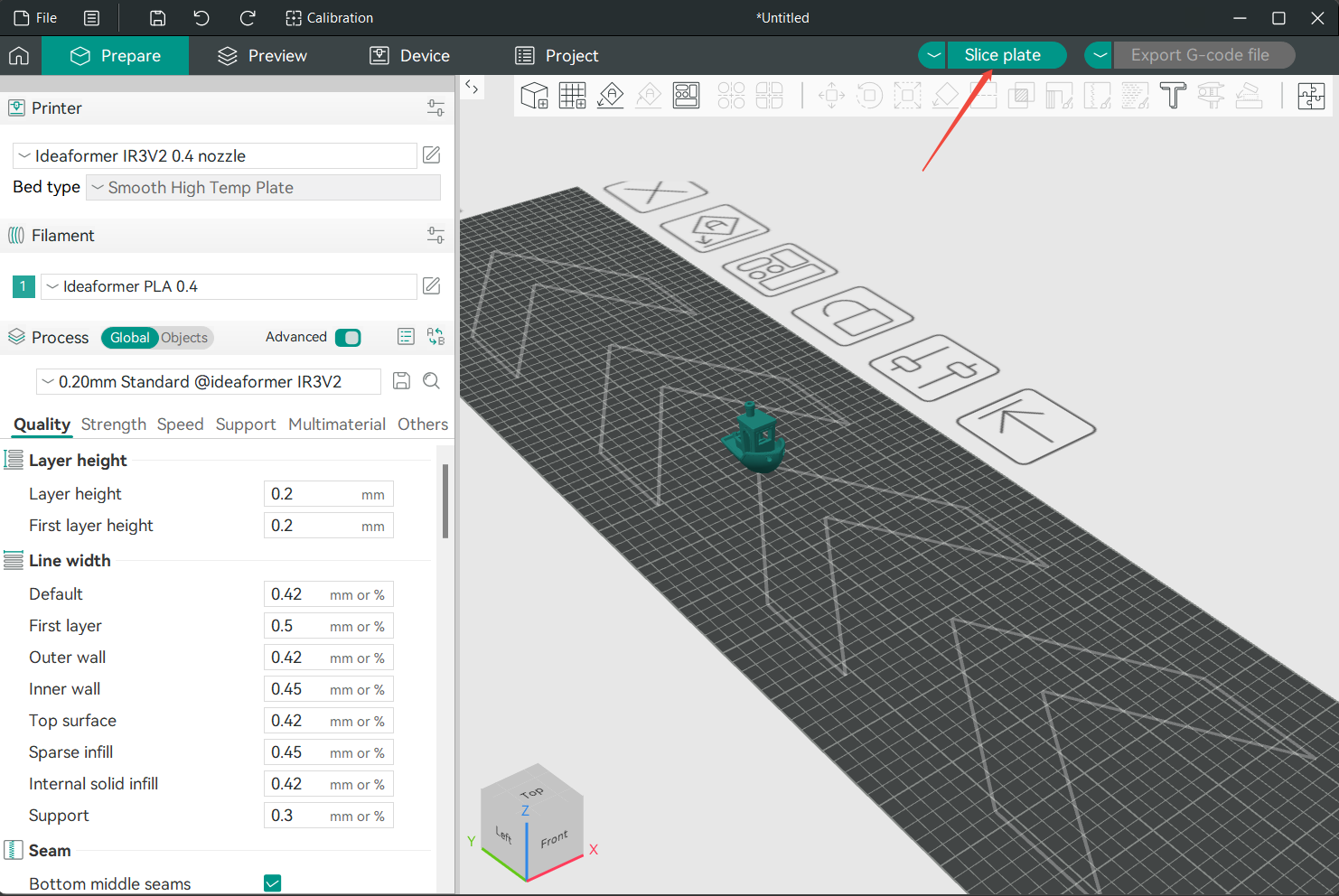
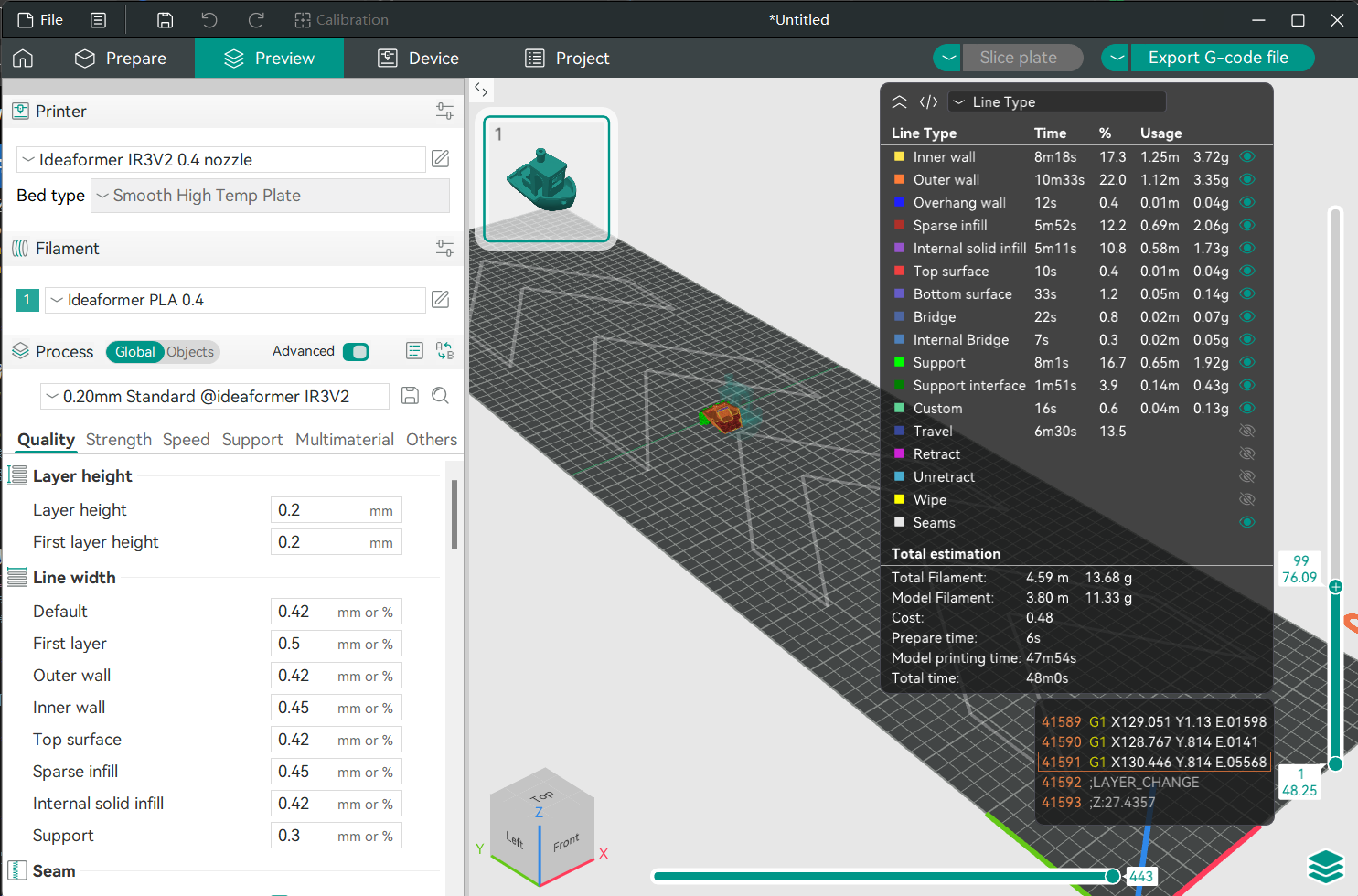
Once done, the slicer will take you to the Preview pane which will show you what the sliced model looks after processing the .3mf file. The histogram on the right hand side will also show you information on the printing times for each parameter of the print.
¶ Send print job
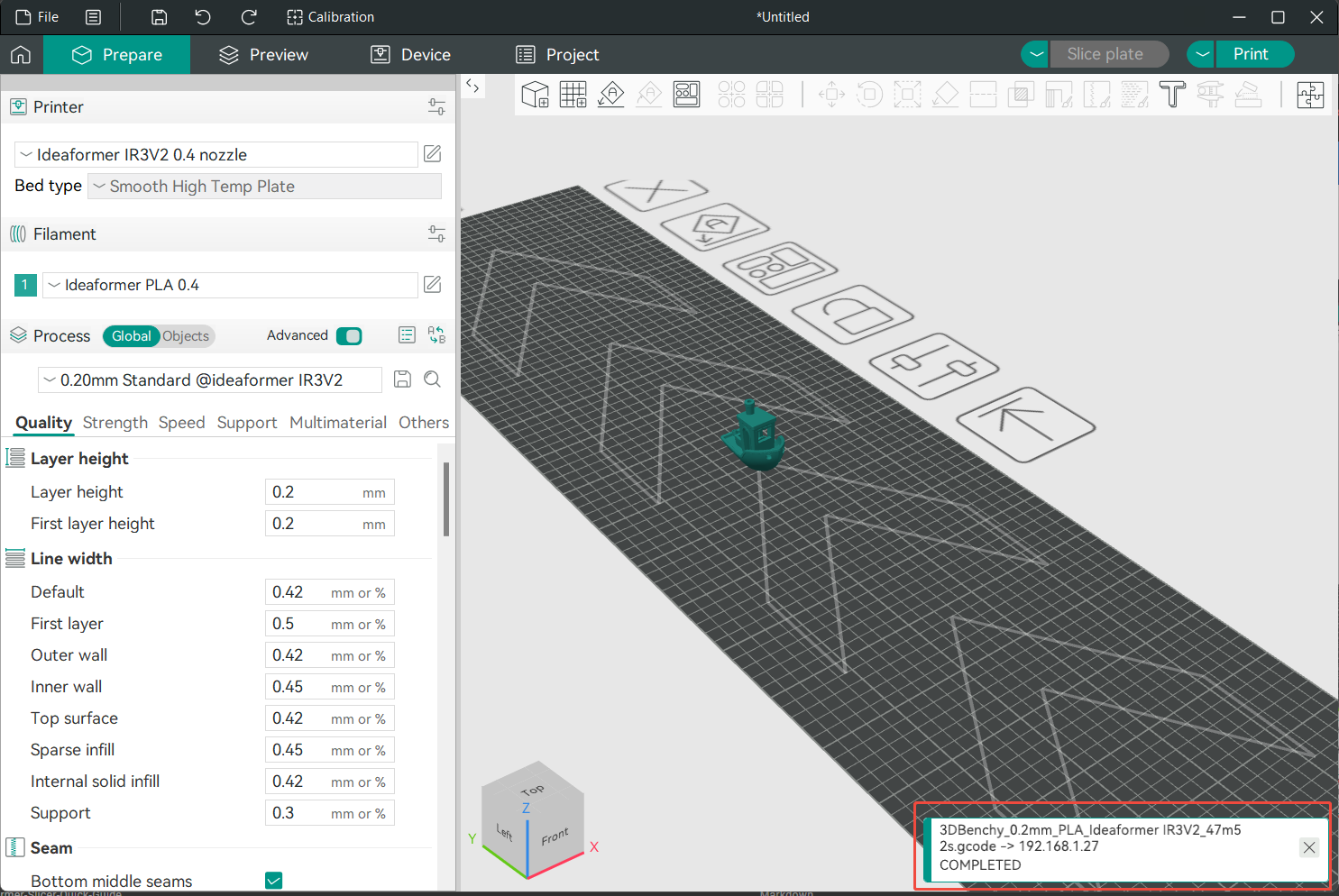
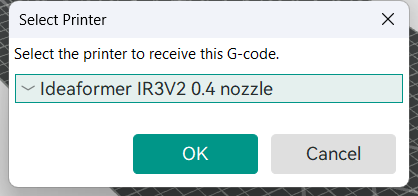
Click on the Print button at the top right corner of the screen. A Select Printer window will then pop up. Choose the printer you want to use for sending.
Choose to upload or upload and print
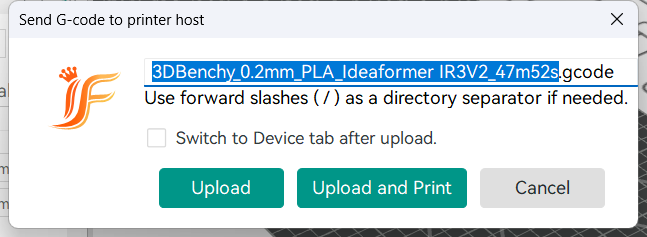
After clicking, the gcode will be uploaded to the printer and printed.