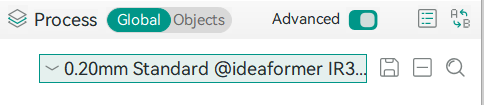
¶ System preset
System presets are built-in presets provided by IdeaFormer-Orca for each supported printer. When a printer is selected, a configuration bundle is imported with the process, filament, and printer presets for that printer.
System presets cannot be modified directly. However, you can make copies of system presets, modify any settings you like, and save the result as a user preset.
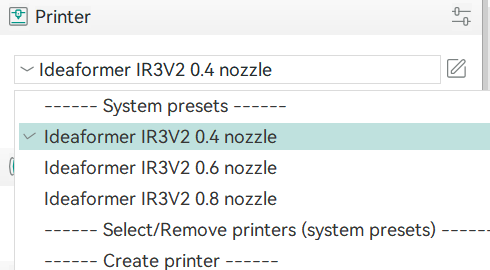
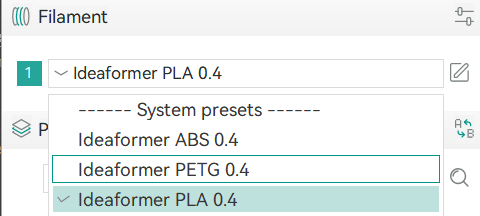
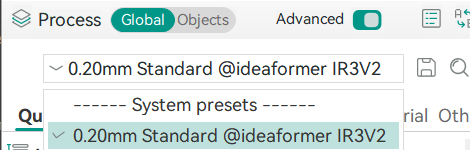
Notes:
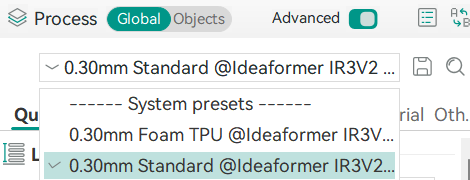
The presets for the process parameters will change as you select different nozzle diameters for your printer. For example, when you select “Ideaformer IR3V2 0.4 nozzle”, you will see the process parameters like this:
When you switch to “ldeaformerIR3V2 0.6 nozzle”, you will see the process parameters like this:
¶ User preset
Although the system modifier is enough in most printings, you could also create a user preset to optimize the most commonly used model types. For example, if most of your model has strict requirements on strength, you can create a preset that increases the wall count, infill density, and shell layers and selects a honeycomb infill pattern. Another typical example is creating new filament presets for 3rd party filaments.
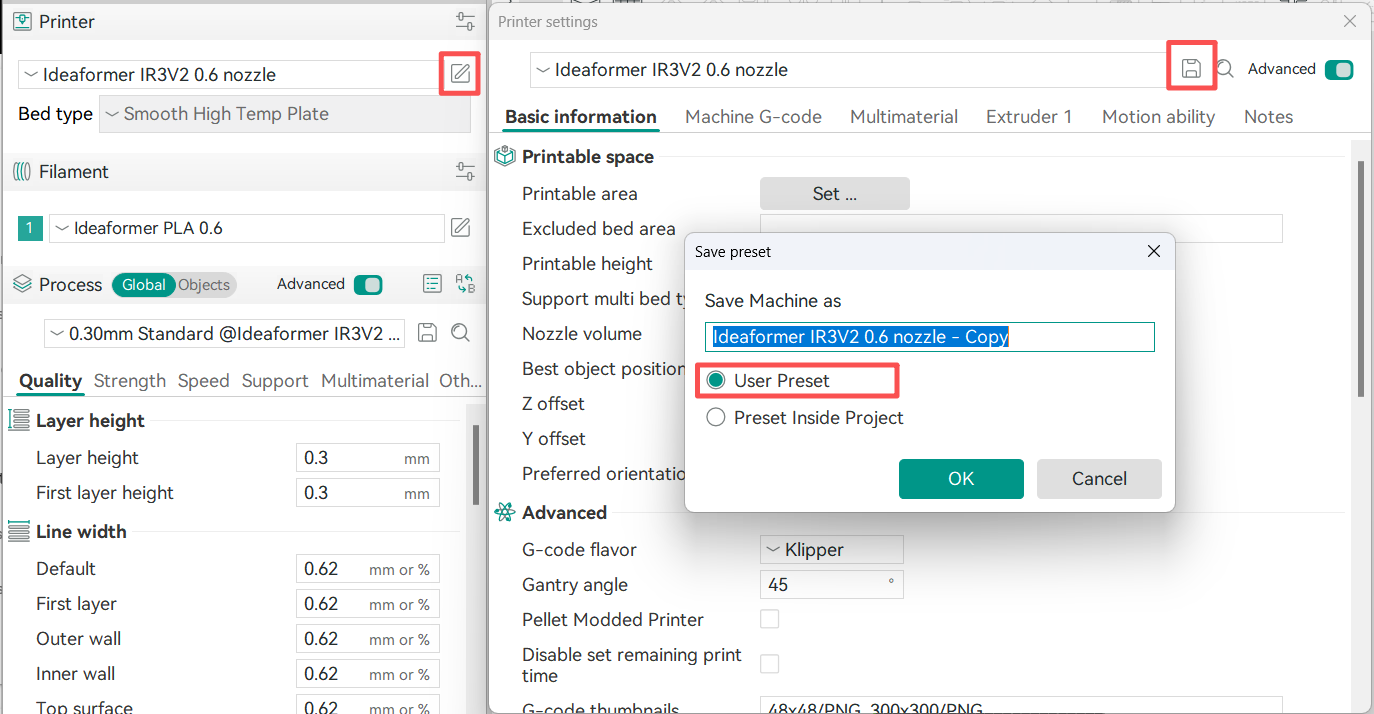
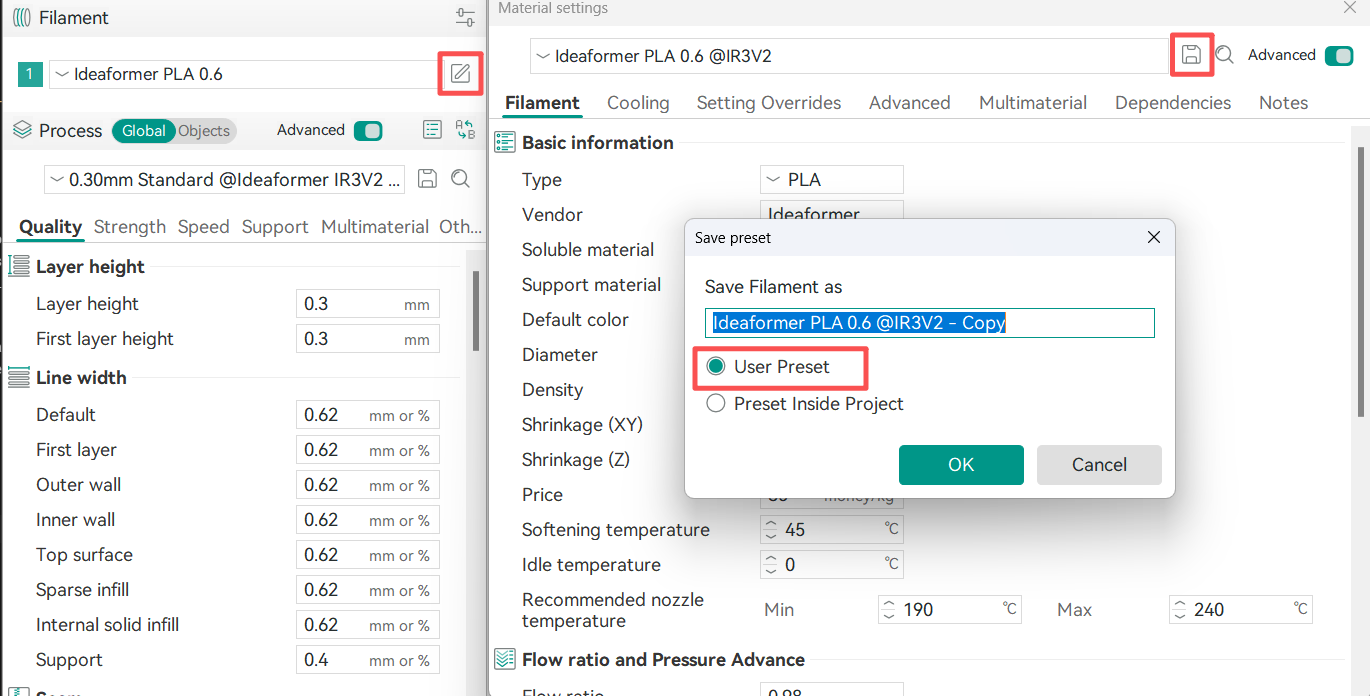
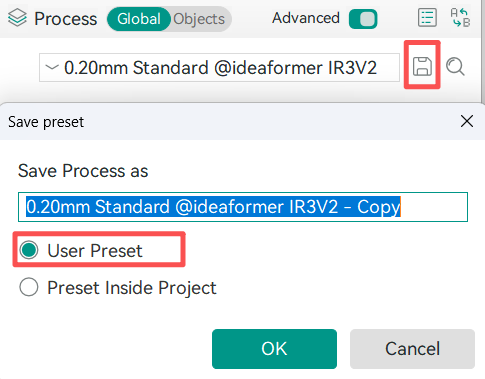
To create a user preset, you may first choose a system preset as the base. After modifying parameters accordingly, please click the “Save” icon, name the new preset, and select “User Preset” type in the pop-up dialog. NOTE: It is not recommended that beginner users change the parameters randomly. You can make user presets for the printer, the filament, and the process, as saved below:
¶ Printer User Preset
¶ Filament User Preset
¶ Process User Preset
¶ Project preset
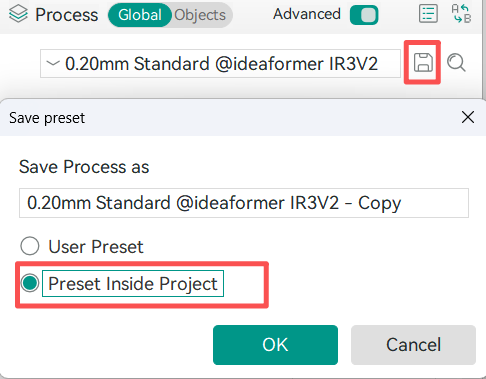
You can also save the printer, consumable spools and modified process parameters as project presets. These project presets are only saved in the current project file (.3mf). The project presets are only visible when loading the current project in IdeaFormer-Orca, and will disappear after loading other projects.
Take the preset of the process project as an example:
¶ Export & Import preset
If you want to share settings with others or create a backup of your custom settings, you can export the selected preset to a local folder.
¶ Export Preset
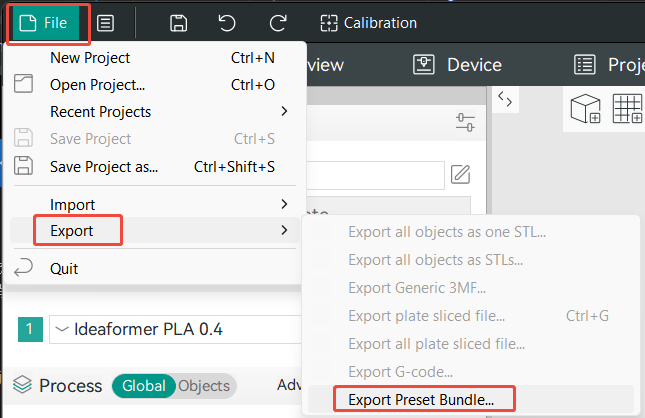
- Click on File and select Export Preset Bundle.
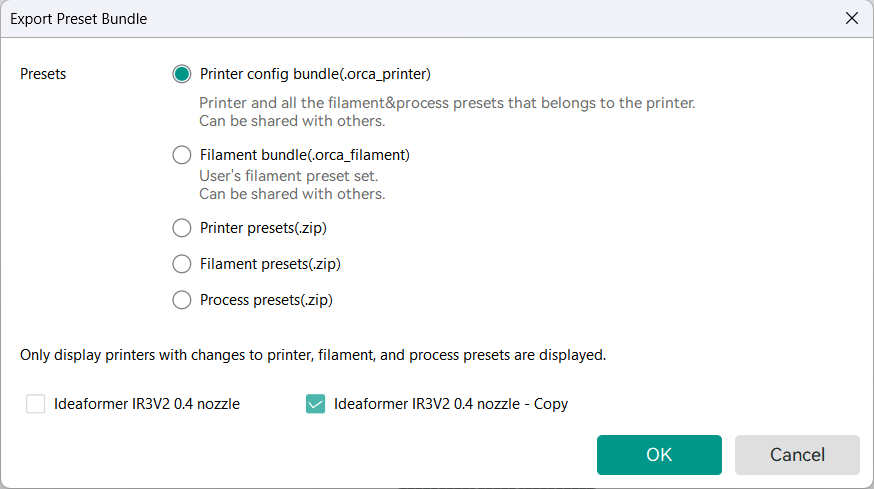
- Select the preset Bundle to be exported. Here, we choose our own user preset.
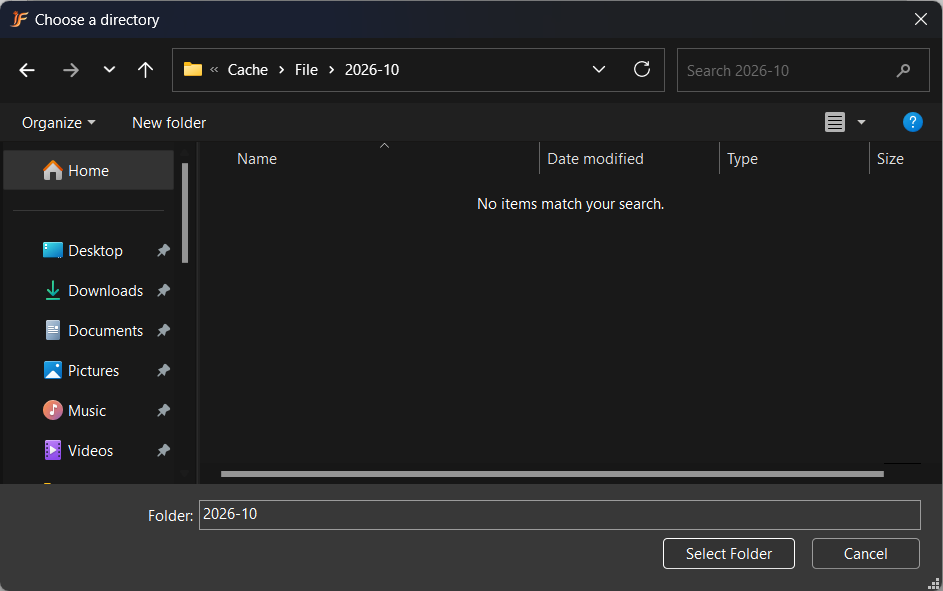
- Select folder.
- Export successful.
¶ Import Preset
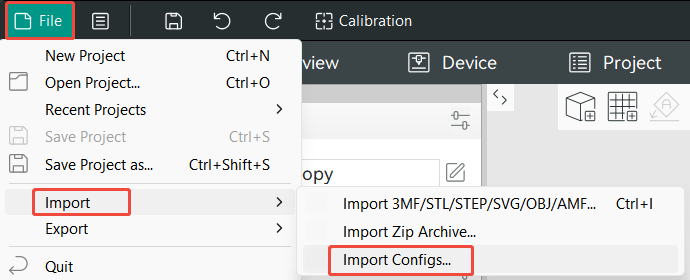
- Click on File and select Import config.
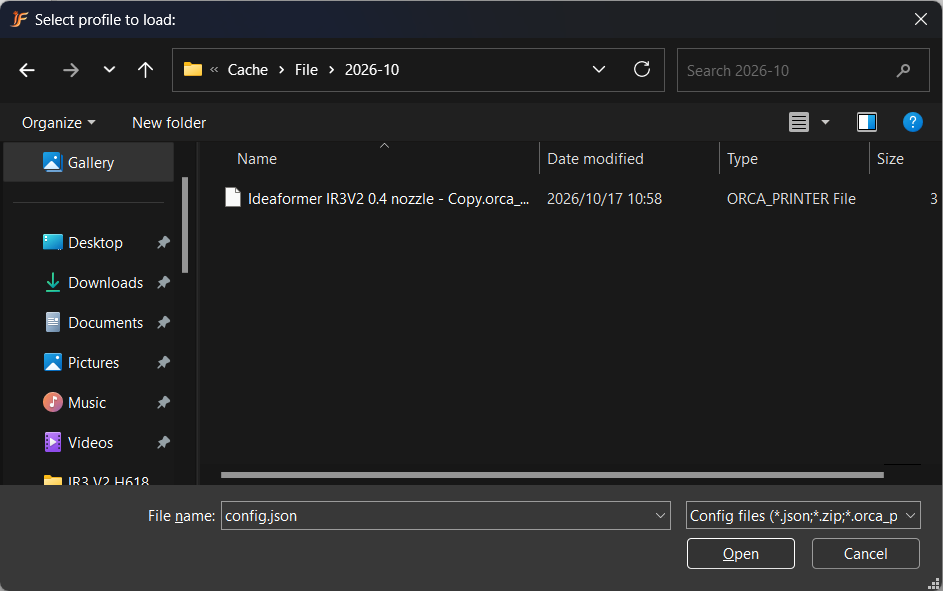
- Select Preset File.
- Import successful.
¶ Delete Preset
After successfully creating a new preset, you can notice a - icon to the right of the Save Preset button. Click on this icon to delete the preset.
Below is an example of a Filament User Preset: