¶ Introduction
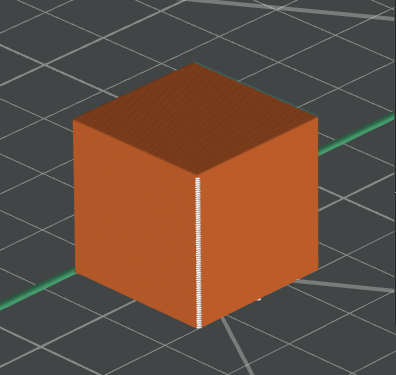
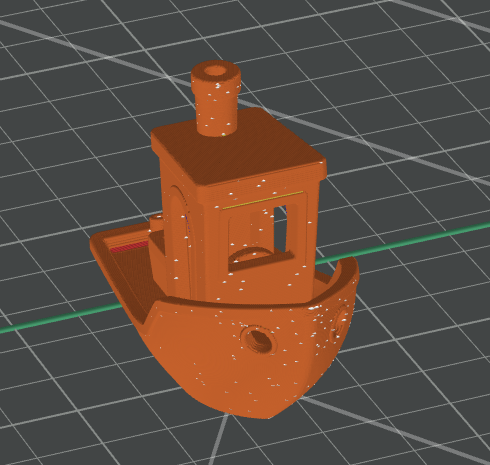
The seam is the gap that occurs at the junction of the starting and ending points of each line during the printing process. It leaves vertical seams on the model surface, which is inevitable in FDM 3D printing. On some irregular surfaces (such as those with concave and convex vertices), the seams can be better hidden. However, on other smoother and more regular surfaces (such as the side of a cylinder), the seams will be very obvious.
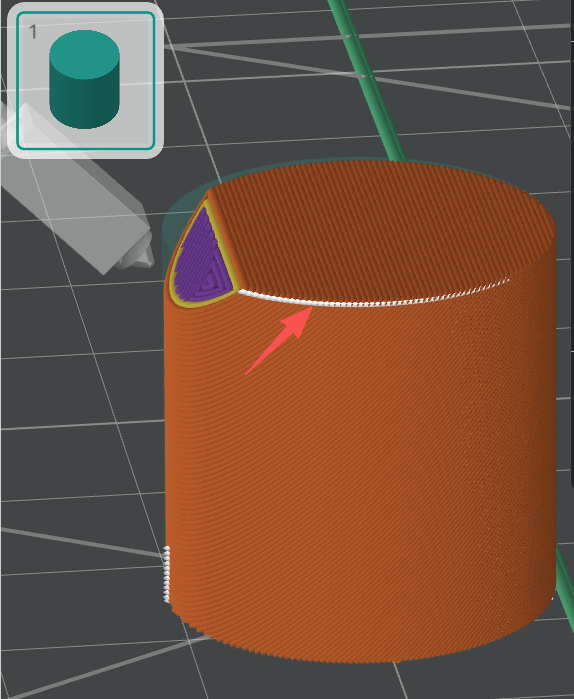
¶ Seam Settings
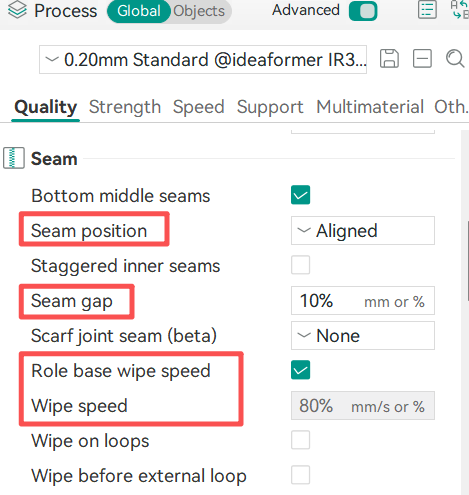
The seam setting interface is as follows. Among them, Seam Position, Seam Gap, Wipe Speed and Role base wipe speed can be applied to all types of seams.
¶ Seam Options
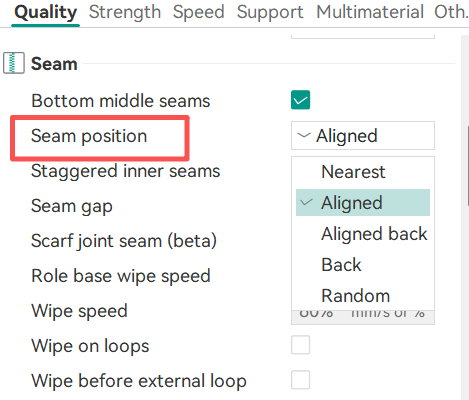
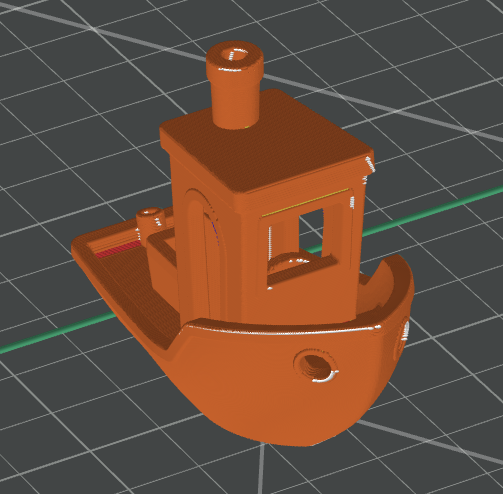
To achieve a better printing effect, you can set the seam position in the process preset. There are four types of seam positions to choose from: Nearest, Aligned, Back Aligned, Back and Random.
¶ Nearest
The seam position is set at the point on the perimeter that is closest to the end point of the previous movement. This is the default setting in many slicing software, as it minimizes the movement time, but it also means that the seam position will unpredictably jump between layers, resulting in rough and scattered lines instead of clear and smooth ones. This method is suitable for prototyping where the appearance of the seam does not require high standards, and a slightly faster printing speed is needed.
¶ Aligned
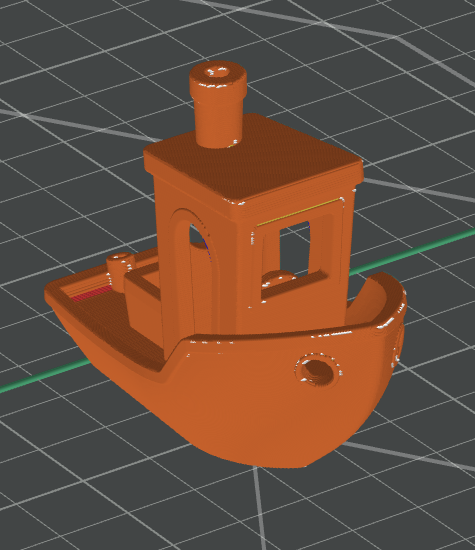
On each layer, the seams are stacked at the same X/Y position and the position is selected based on the geometry of the model (preferring the protruding corners where the seams are less obvious). This is the most commonly recommended setting in general printing - it sacrifices a small amount of printing efficiency in exchange for a straight and predictable seam, rather than a messy gap.
¶ Back Aligned
¶ Back
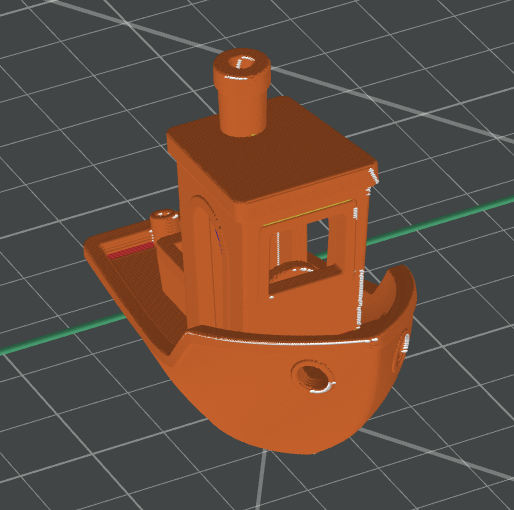
Force the seams to be placed at the position on the model’s edge that is closest to the back (in relation to the direction of the build platform). This feature is very useful when you know exactly how the model will be viewed or displayed, and you want to ensure that the seams face away from the viewer - for example, small statues on a shelf, phone stands, and any item with a distinct “front side”.
¶ Random
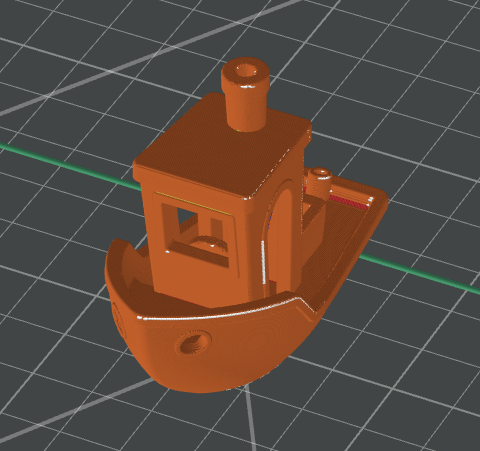
It disperses the seams at different positions on each layer, thus avoiding the formation of a single vertical line. As a result, there won’t be a distinct seam, and instead, there will be faint textures all over the surface. This method is suitable for organic texture models because on these models, a hard line looks worse than some overall surface noise – but for printed pieces of smooth walls, this is a bad choice as it only increases the overall roughness without solving the problem.
¶ Seam Gap
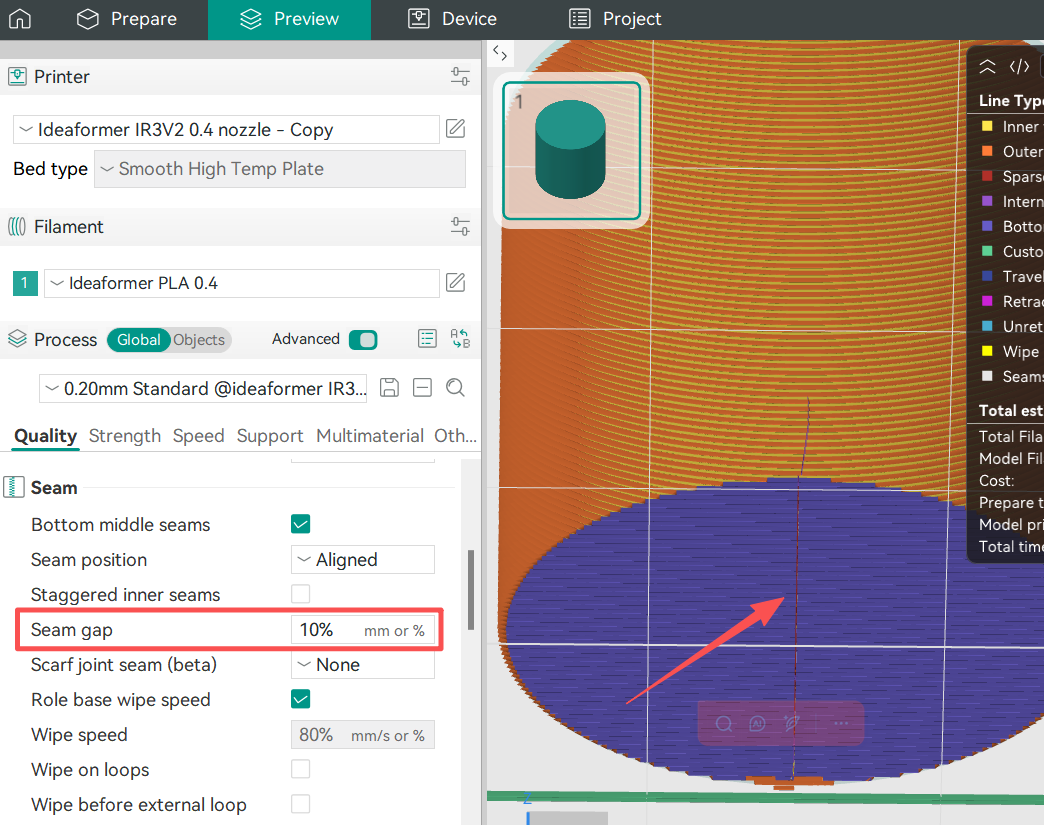
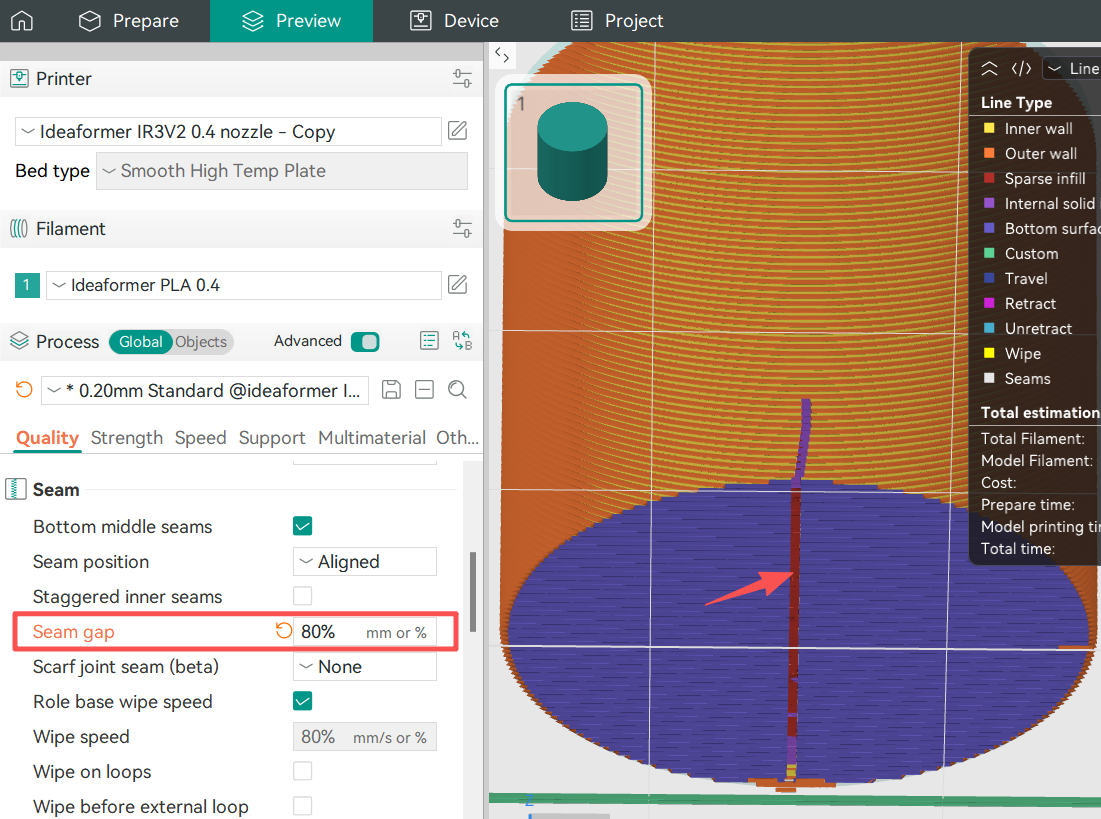
To make the seams look more hidden, the extrusion is stopped in advance when printing the inner and outer walls, leaving a gap at the seam position to accommodate excess material. This length is expressed as a percentage of the current nozzle diameter. The default value is 10%.
¶ Seam Gap 10%
¶ Seam Gap 80%
¶ Wipe speed
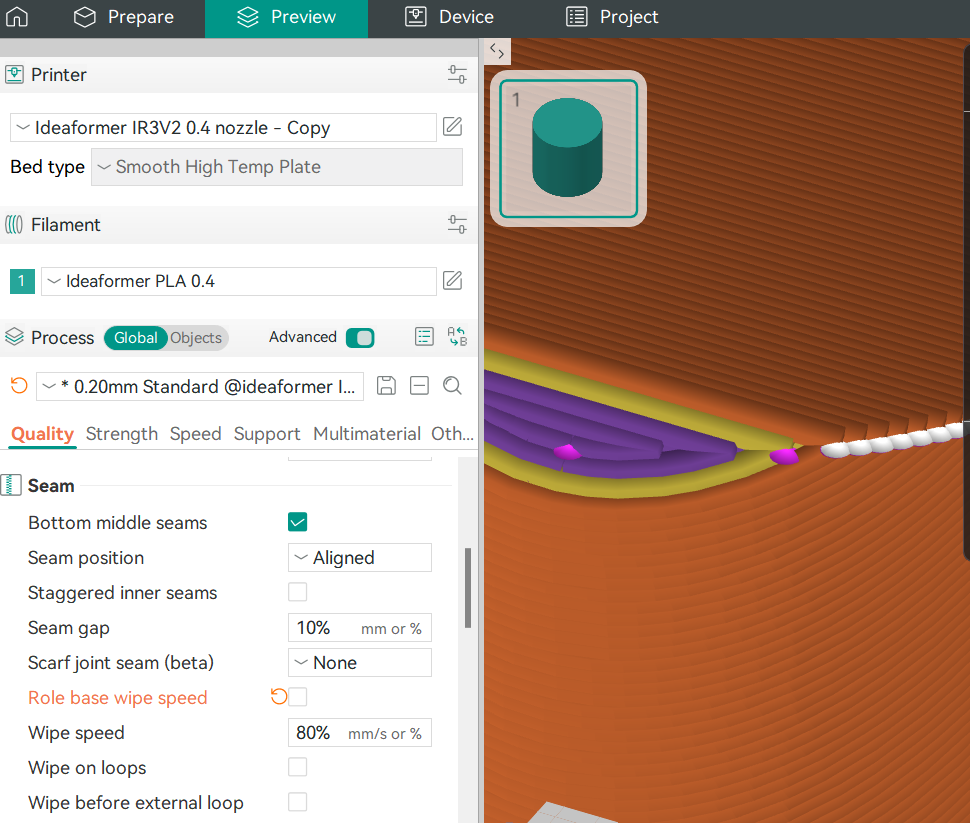
When retraction, a short wiping is usually performed to clean the nozzle , and the wiping speed can be adjusted. This value is expressed as a percentage and will be calculated based on the percentage of traveling speed. For example, setting the wiping speed to 80% means that the wiping speed = the traveling speed * 80%.
¶ Manual-seam painting
Sometimes the auto seam position may be not ideal, you can customize the seam position by manually painting the method. The seam painting function can be enabled here:

¶ The method of manually painting the seams:
Select the object in the three-dimensional view.
Switch to the seam drawing tool in the left toolbar (the brush icon with the seam symbol).
Use the slider or the [/] key to adjust the brush size.
Click the left mouse button and drag the mouse on the surface where you want to force the formation of a seam.
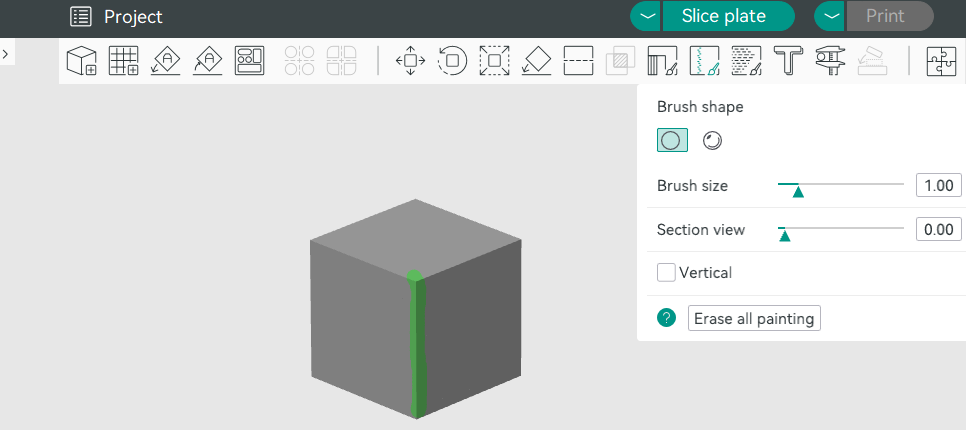
If you need to correct the errors, right-click and drag to erase the drawing area.
Slicing and Preview - The seams should now follow the lines you have drawn instead of extending according to the automatic algorithm.